
How to Invest in Travaleo
Step-by-Step Investor Guide
Follow the full onboarding and account management flow for new investors.
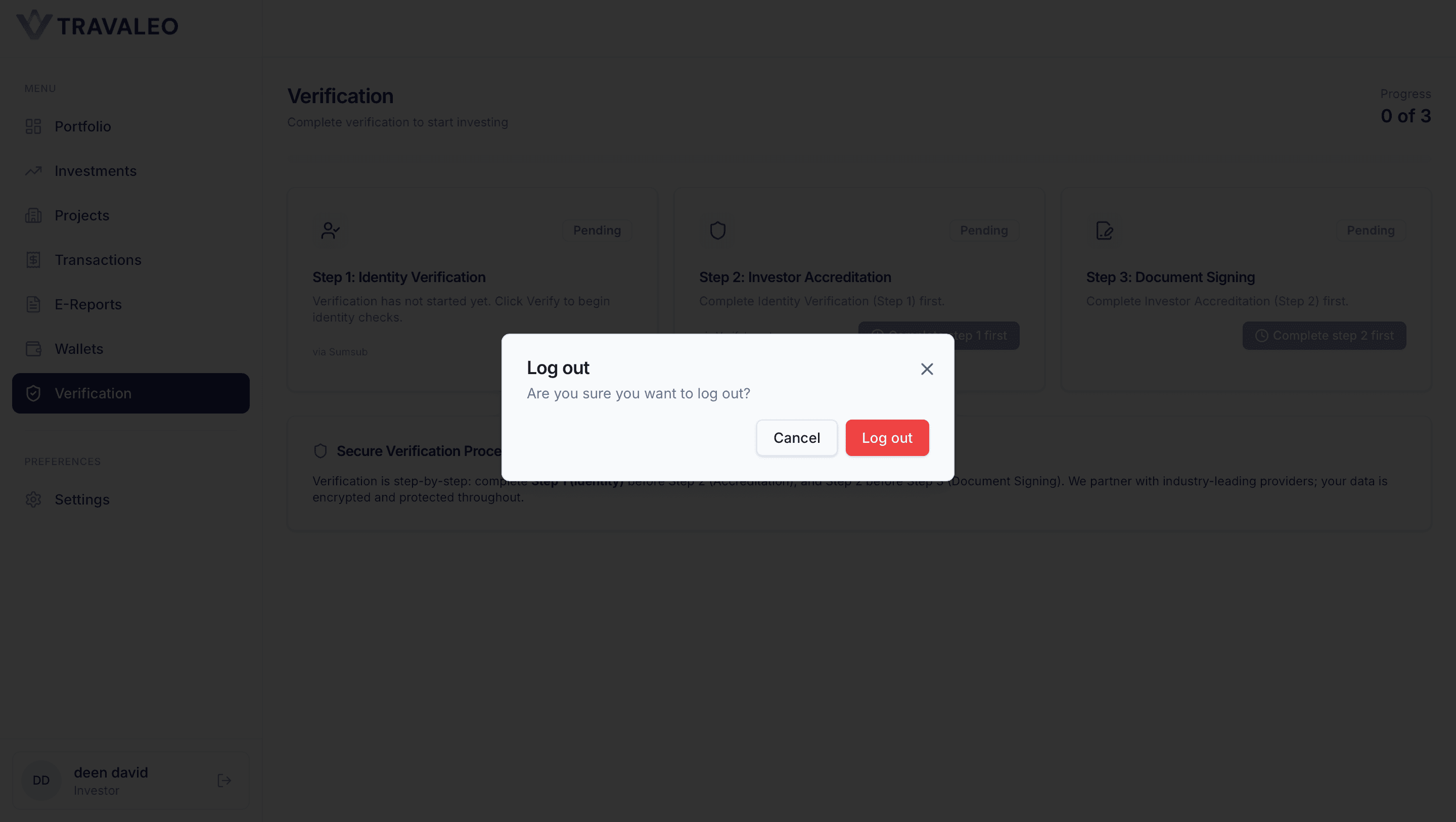
Create an Account
New investors need to create an account before they can access the investment dashboard.
To create an account, the investor should:
- Click Sign up from the login screen.
- Choose Continue with Google or fill in the registration form manually.
- Enter the required details: First Name Last Name Email Address Password
- Create a password that meets the platform’s security requirements.
- Tick the checkbox to agree to the Terms of Service and Privacy Policy.
- Click Create account.
If the investor already has an account, they can click Sign in and log in with their existing credentials.
After account creation, the investor can continue to the dashboard and start the mandatory verification process.
Sign In to Your Investment Dashboard
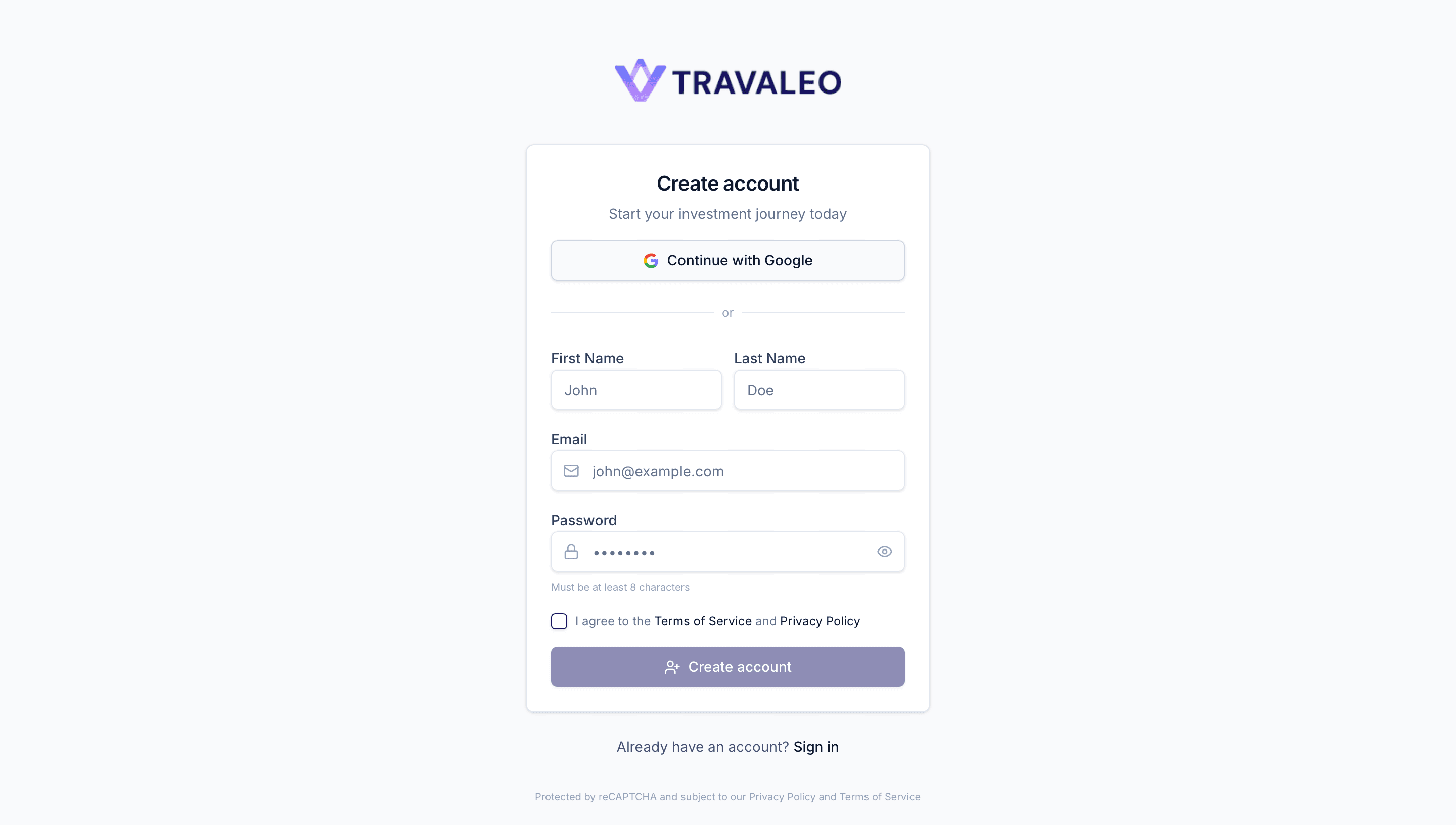
To start using the platform, the investor needs to sign in to their account.
The investor can log in using one of the available options:
Option 1: Continue with Google Click Continue with Google and select the Google account linked with the platform.
Option 2: Sign in with Email and Password Enter the registered email address and password, then click Sign in.
If the investor does not remember the password, they can click Forgot? to reset it.
If the investor does not have an account yet, they can click Sign up to create a new account.
After successful login, the investor will be taken to their investment dashboard, where they can complete the required verification steps before investing.
Reset Password
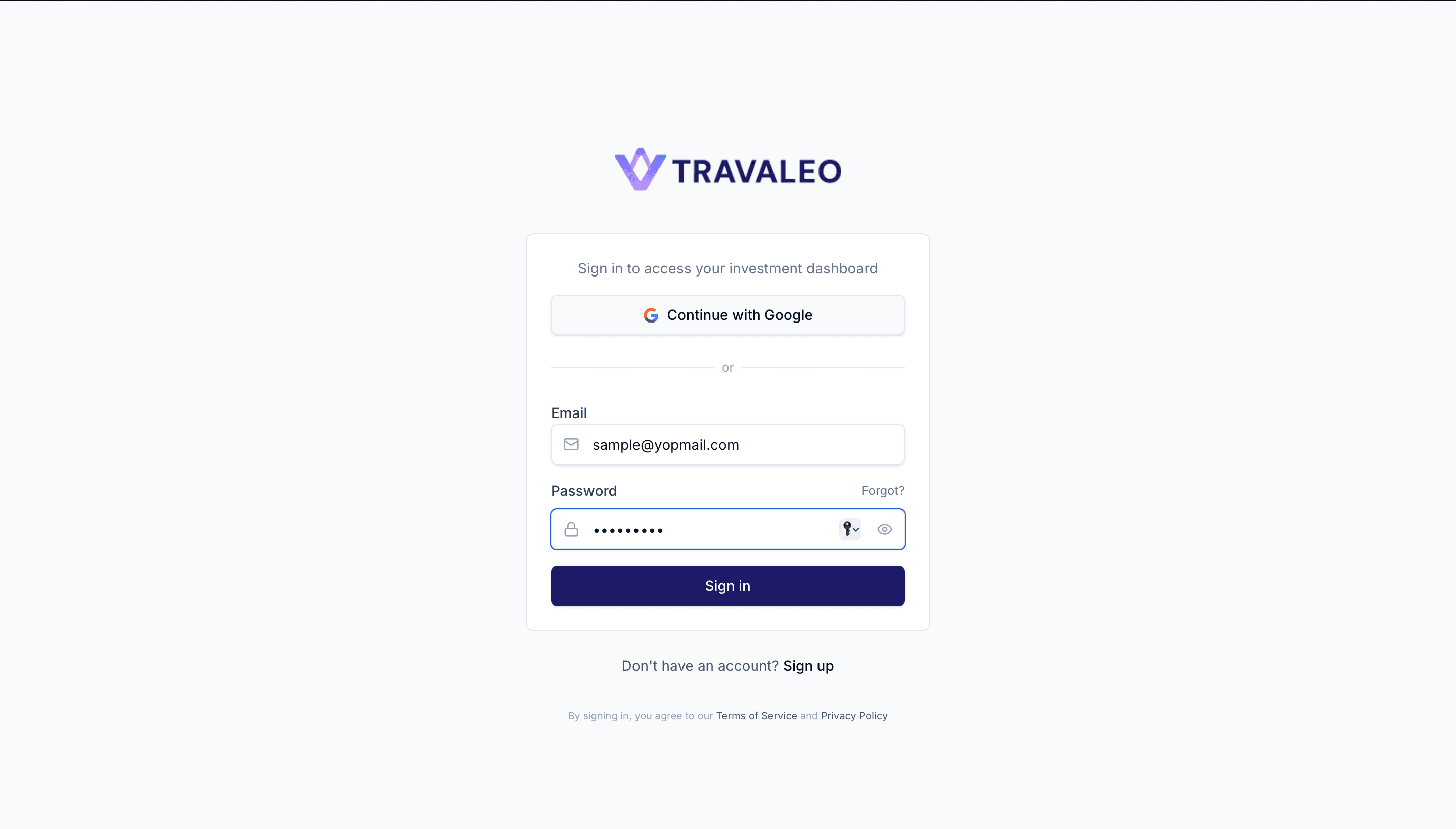
If an investor forgets their password, they can reset it from the login screen.
To reset the password, the investor should:
- Click Forgot? on the sign in page.
- Enter the registered email address.
- Click Send reset link.
- Check the email inbox for the password reset link.
- Open the link and create a new password.
If the investor remembers the password, they can click Back to login and sign in normally.
If the reset email is not received, the investor can click Contact our support team for assistance.
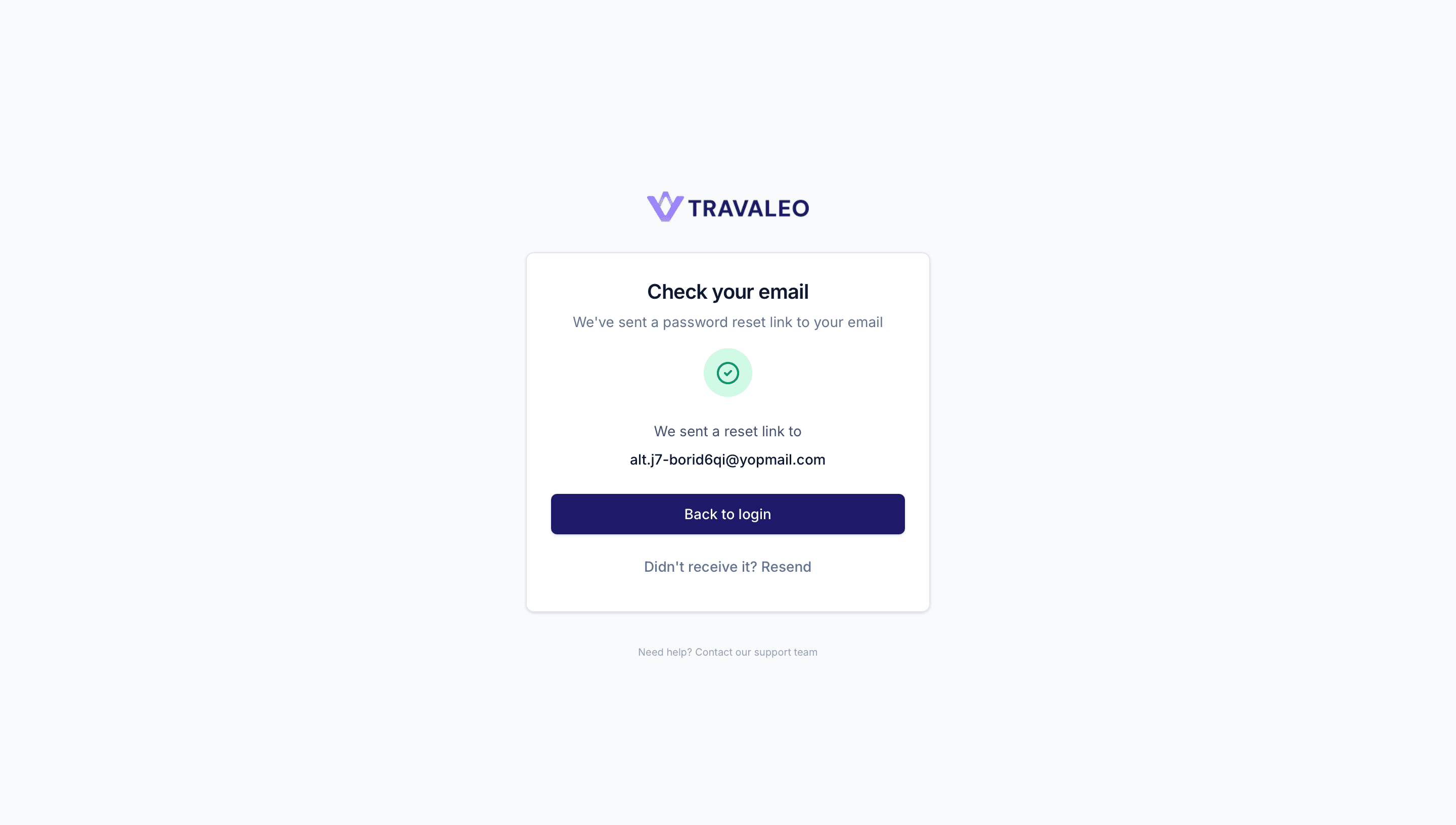
Check Your Email
After requesting a password reset, the investor will see a confirmation screen.
The investor should:
- Check the email inbox connected with the account.
- Open the password reset email sent by the platform.
- Click the reset link inside the email.
- Create a new password and save the changes.
- Return to the login screen and sign in with the new password.
If the email does not appear in the inbox, the investor should check the spam or junk folder.
If the email is still not received, click Resend to send the reset link again.
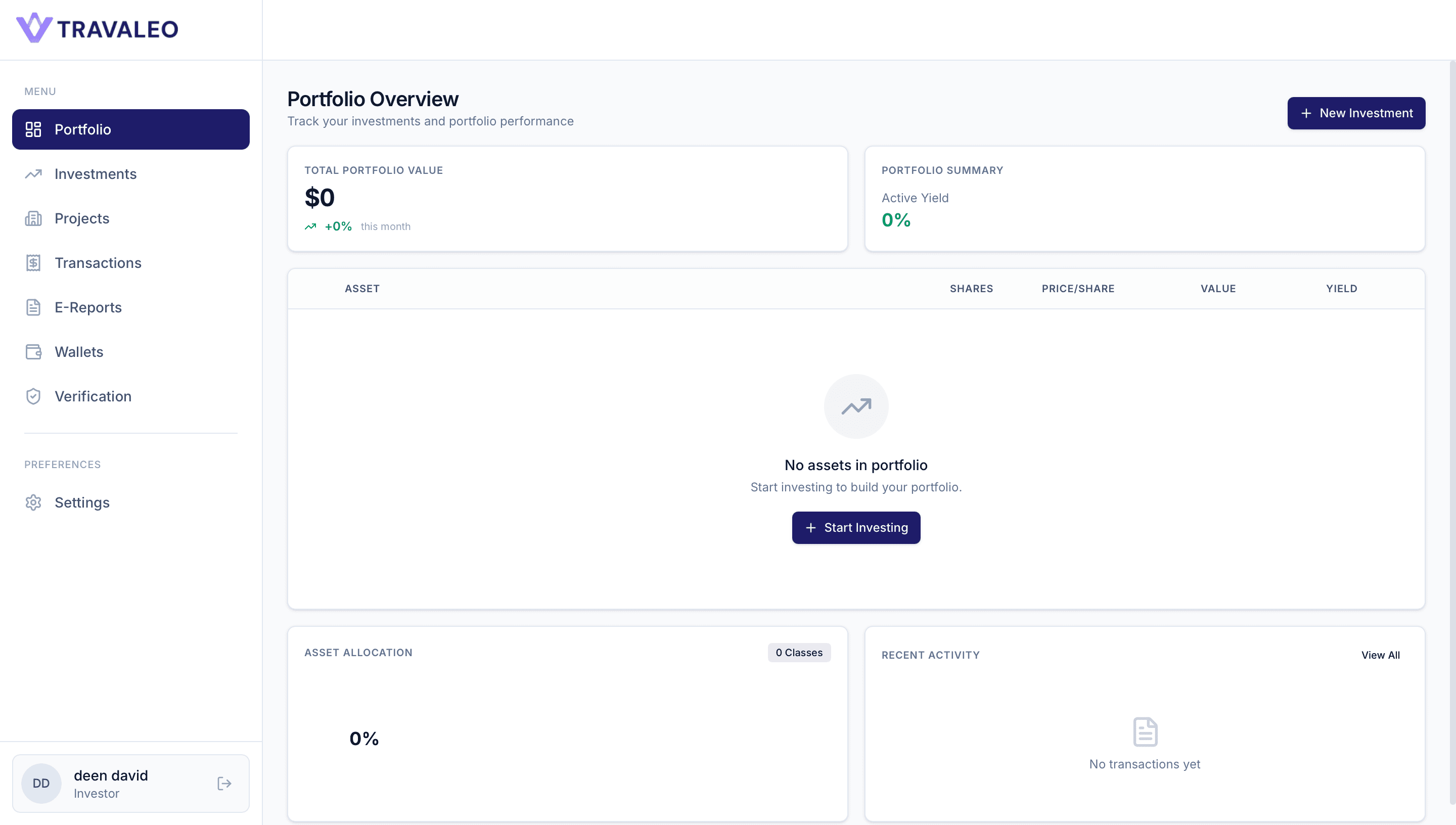
View Portfolio Overview
After signing in, the investor will land on the Portfolio Overview page.
This page gives a quick summary of the investor’s current investment status, portfolio value, active yield, assets, and recent activity.
On this screen, the investor can:
- View the Total Portfolio Value.
- Check the Portfolio Summary and active yield.
- See all owned assets, shares, price per share, value, and yield.
- Review Asset Allocation.
- Check Recent Activity.
- Use the left side menu to access: Portfolio Investments Projects Transactions E Reports Wallets Verification Settings
If the portfolio is empty, the investor will see No assets in portfolio.
To begin investing, the investor can click Start Investing or New Investment.
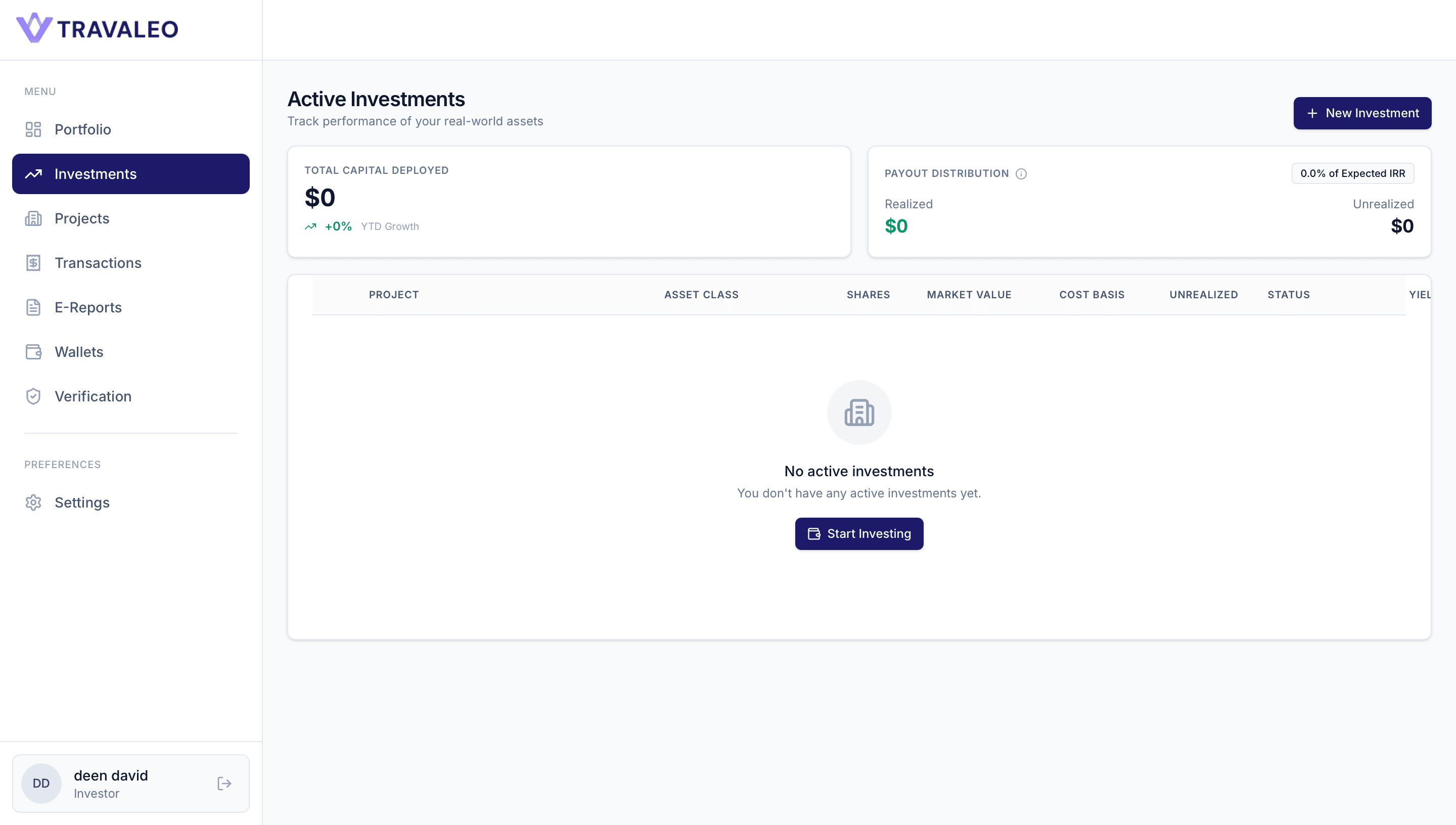
Open the Investments Section
From the dashboard, the investor can open the Investments section from the left side menu.
This page shows the investor’s active investment performance and payout status.
On this screen, the investor can:
- View Total Capital Deployed.
- Check Payout Distribution.
- See the table for active investments, including: Project Asset Class Shares Market Value Cost Basis Unrealized Value Status.
- Start a new investment by clicking Start Investing or New Investment.
If the investor has not invested yet, the page will show No active investments.
To proceed, the investor should click Start Investing and select an available project.
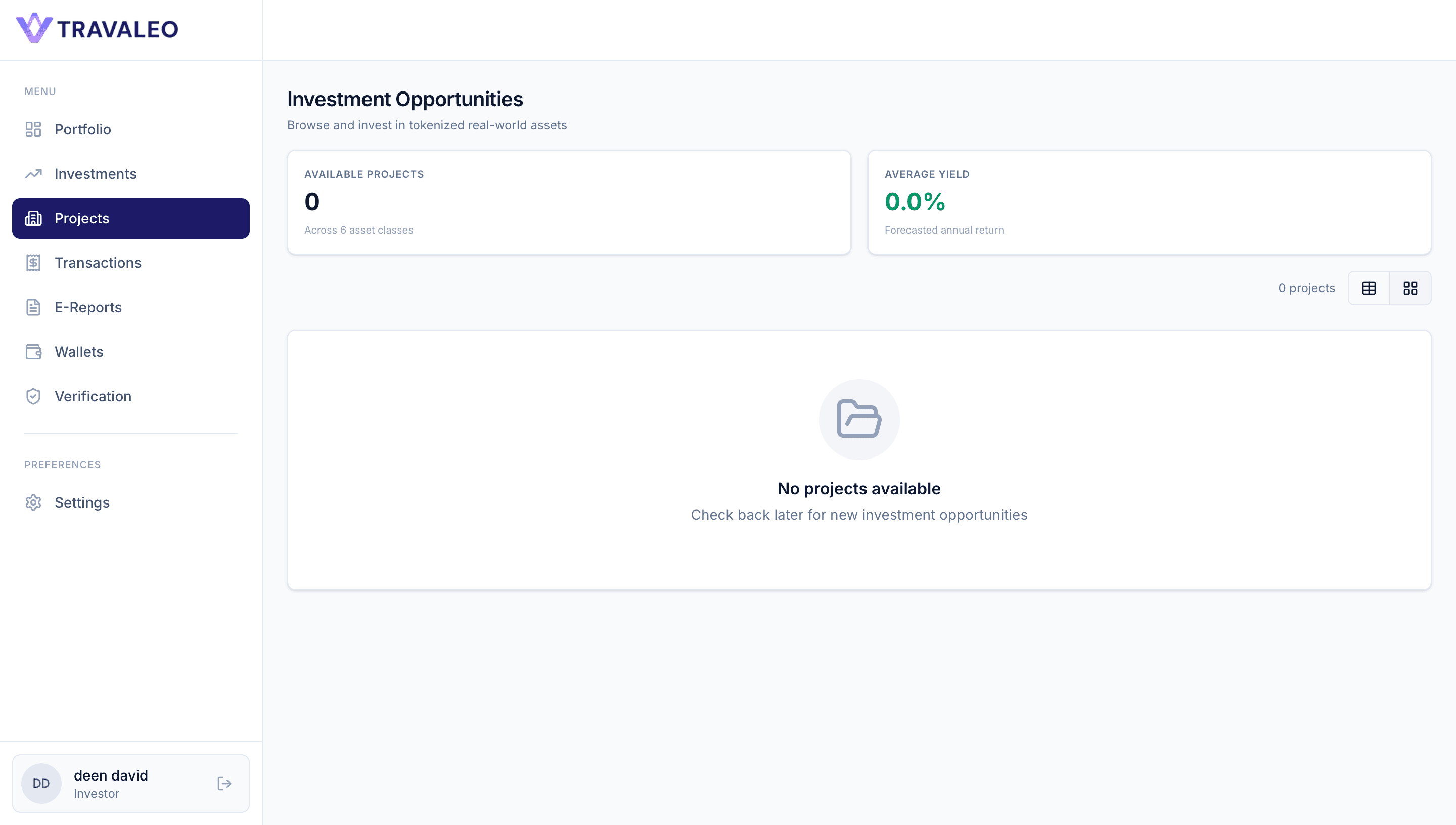
View Investment Opportunities
The investor can open the Projects section from the left side menu to view available investment opportunities.
This page shows all projects created by the admin where investors can review available assets and decide where to invest.
On this screen, the investor can:
- View the number of Available Projects.
- Check the Average Yield across available investments.
- Browse available projects in list or grid view.
- Open a project to review its details, share price, asset class, expected return, and investment terms.
If no projects are available, the page will show No projects available.
In that case, the investor should check back later when new investment opportunities are published by the admin.
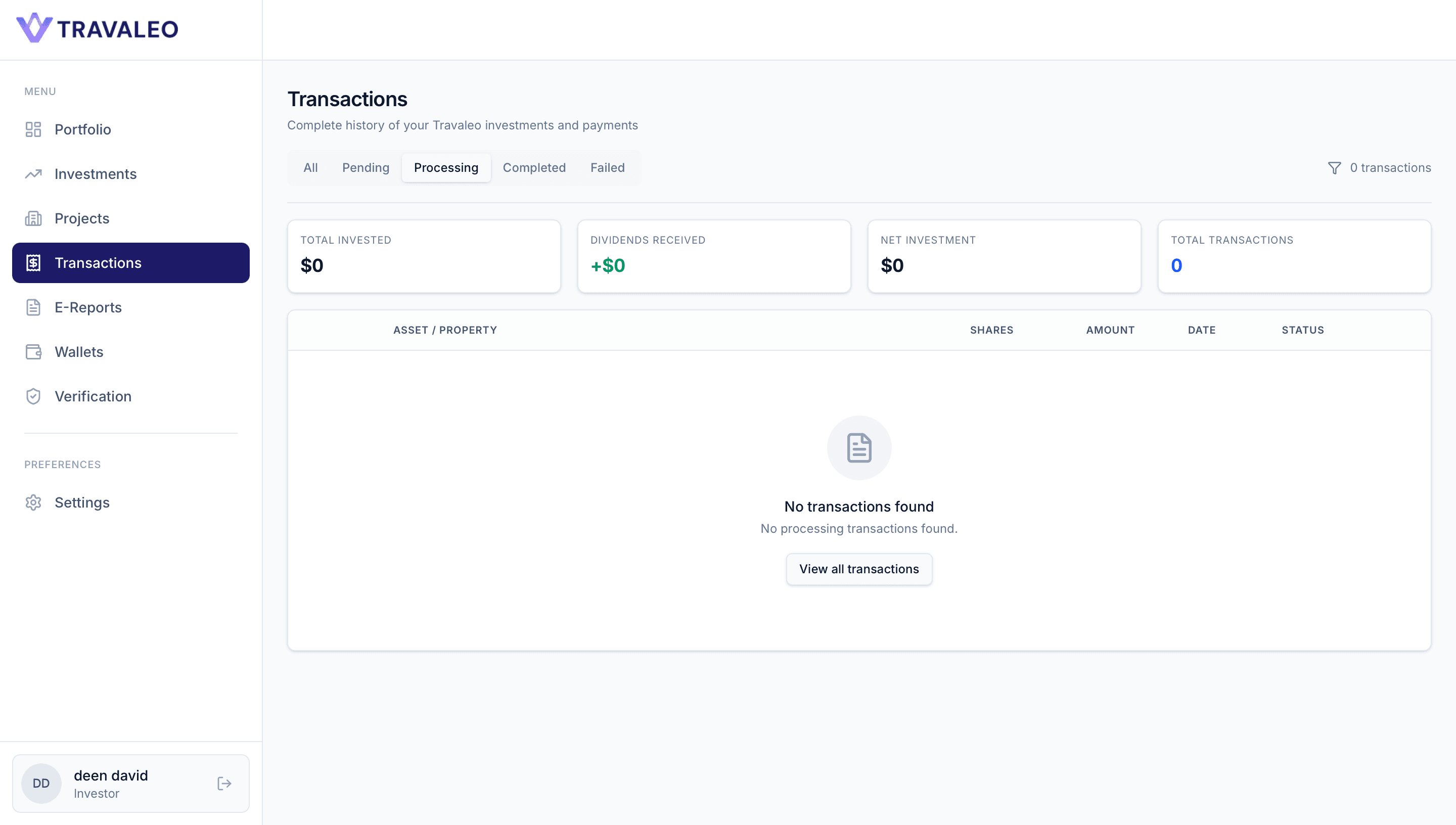
View Transactions
The investor can open the Transactions section from the left side menu to track investment activity, payments, and dividend records.
This page helps investors monitor the complete history of their investment transactions.
On this screen, the investor can:
- View Total Invested.
- Check Dividends Received.
- Review the Net Investment amount.
- See the total number of transactions.
- Filter transactions by status: All Pending Processing Completed Failed
- Review transaction details, including Asset / Property Shares Amount Date Status
If the investor has not made any transactions yet, the page will show No transactions found.
Once the investor invests in a project and the payment is reviewed, the transaction history will start appearing here.
Generate and Download E Reports
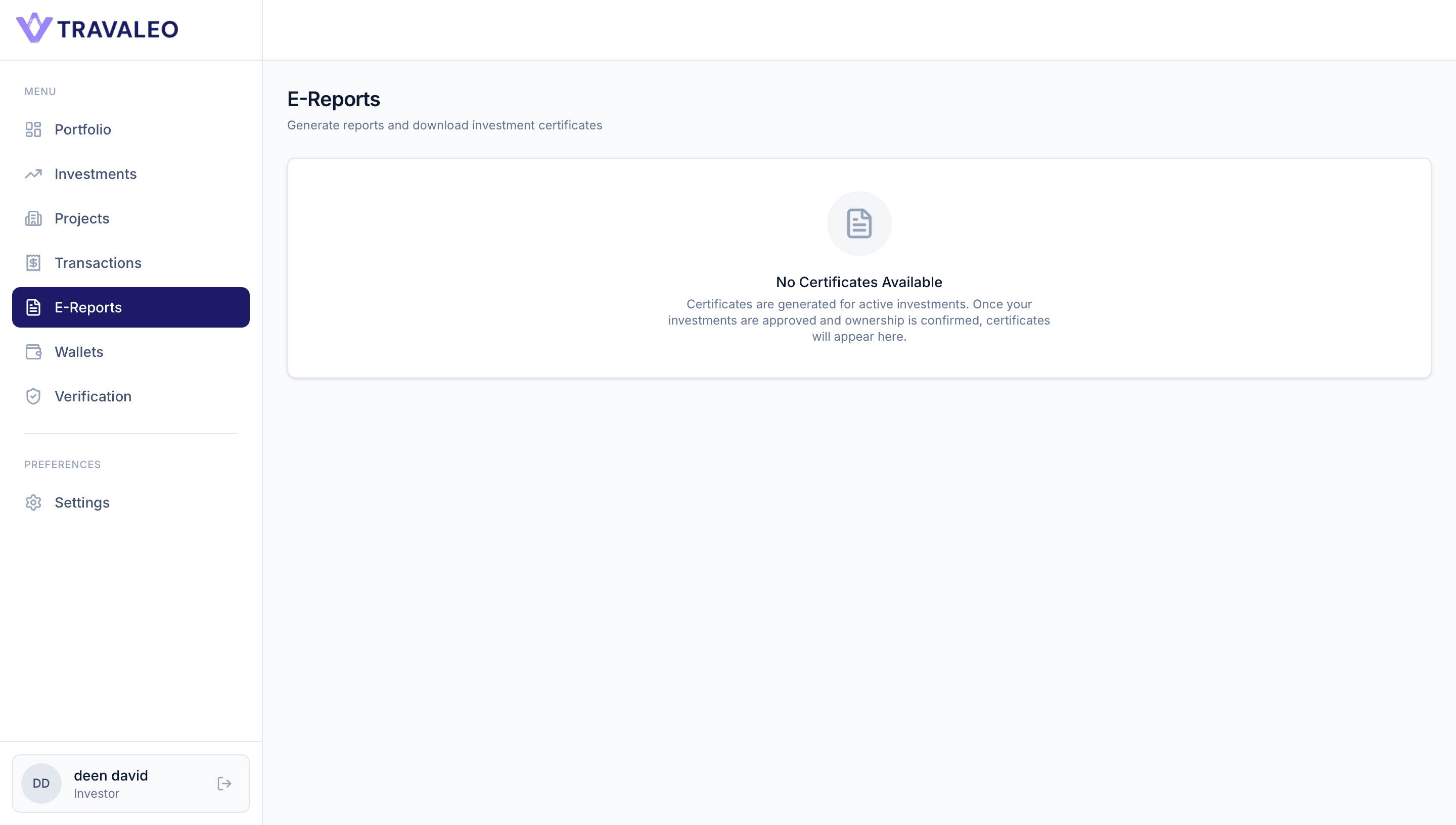
The investor can open the E Reports section from the left side menu to access investment reports and certificates.
This section is used to generate and download official investment records.
On this screen, the investor can:
- View available investment certificates.
- Generate reports based on approved investments.
- Download certificates for confirmed investment shares.
- Keep records for personal tracking, compliance, or future reference.
If no certificate is available, the page will show No Certificates Available.
Certificates are generated only after the investment is approved and ownership is confirmed. Once the approval process is complete, the investor’s certificates will appear in this section.
Set Up Wallet
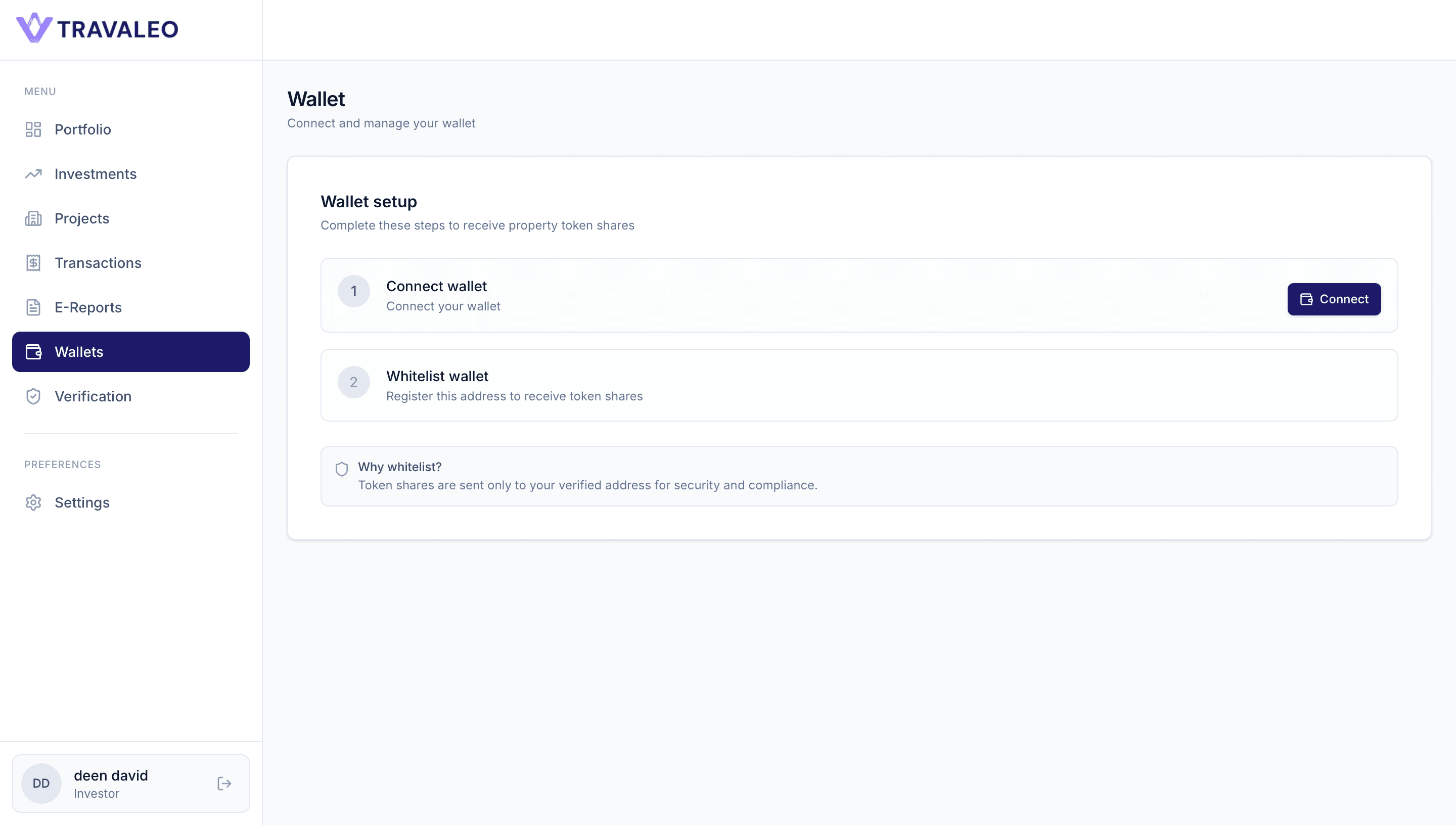
The investor must open the Wallets section from the left side menu and connect their wallet before receiving token shares.
This step is important because token shares are sent only to the investor’s verified wallet address.
To set up the wallet, the investor should:
- Click Wallets from the left side menu.
- Click Connect to connect a wallet.
- Select the supported wallet provider.
- Approve the connection request from the wallet.
- Complete the wallet connection successfully.
- Whitelist the wallet address so the platform can send token shares to the correct verified address.
Once the wallet is connected and whitelisted, the investor can receive tokens according to the number of approved shares.
The wallet must belong to the investor and should be accessible at all times. Token shares are sent only to verified wallet addresses for security and compliance.
Connect Your Wallet
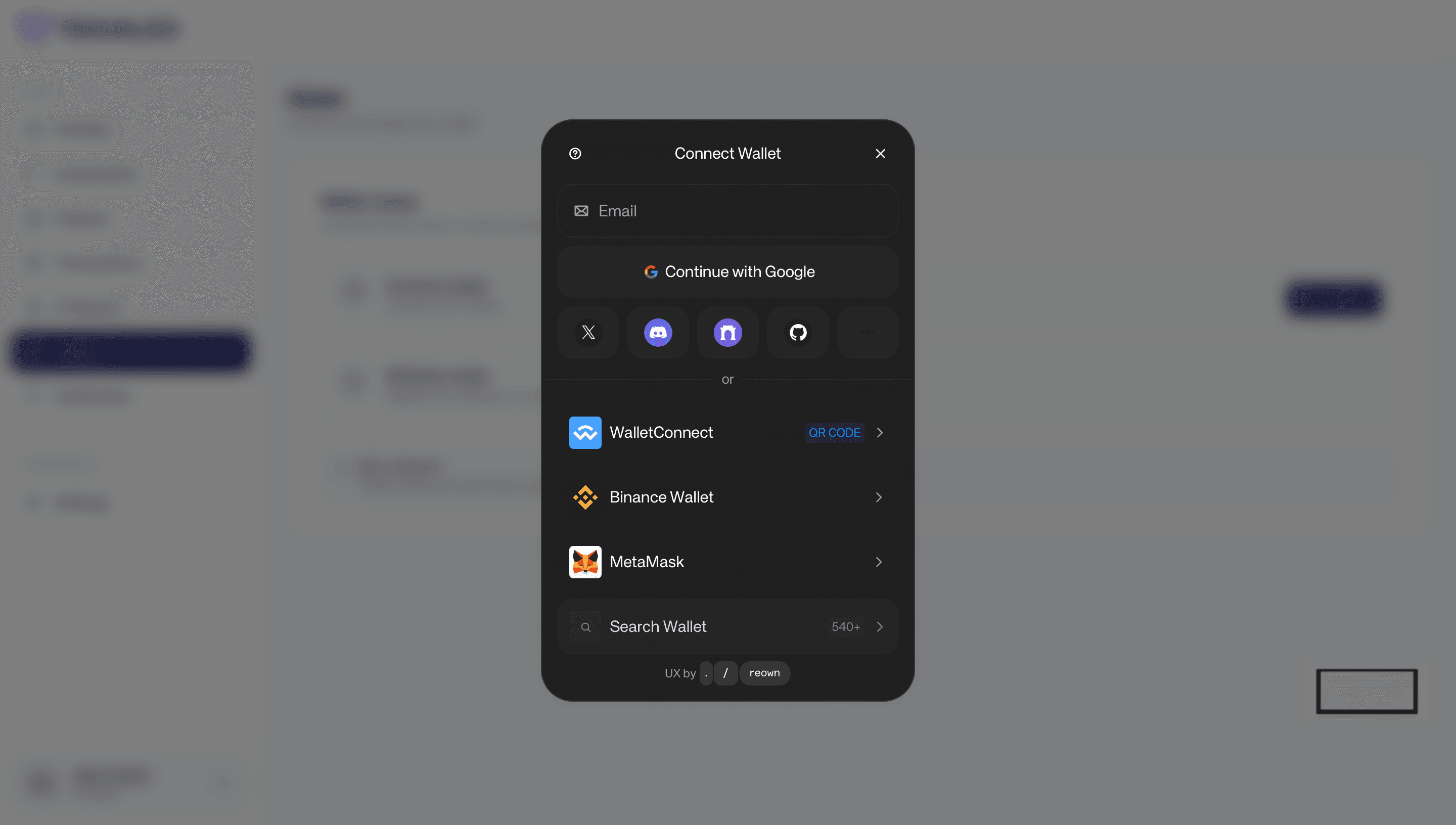
After clicking Connect in the Wallet section, a wallet connection popup will appear.
The investor can connect their wallet using one of the available methods:
- Select the preferred wallet option.
- Available options may include WalletConnect Binance Wallet MetaMask other supported wallets from the wallet list.
- Approve the connection request inside the selected wallet.
- Confirm that the wallet address shown is correct.
- Complete the connection process.
Investors can also search for a wallet from the Search Wallet field if their wallet does not appear in the main list.
After the wallet is connected, the platform will use this wallet address to receive token shares linked to the investor’s approved investment.
Complete Mandatory Verification
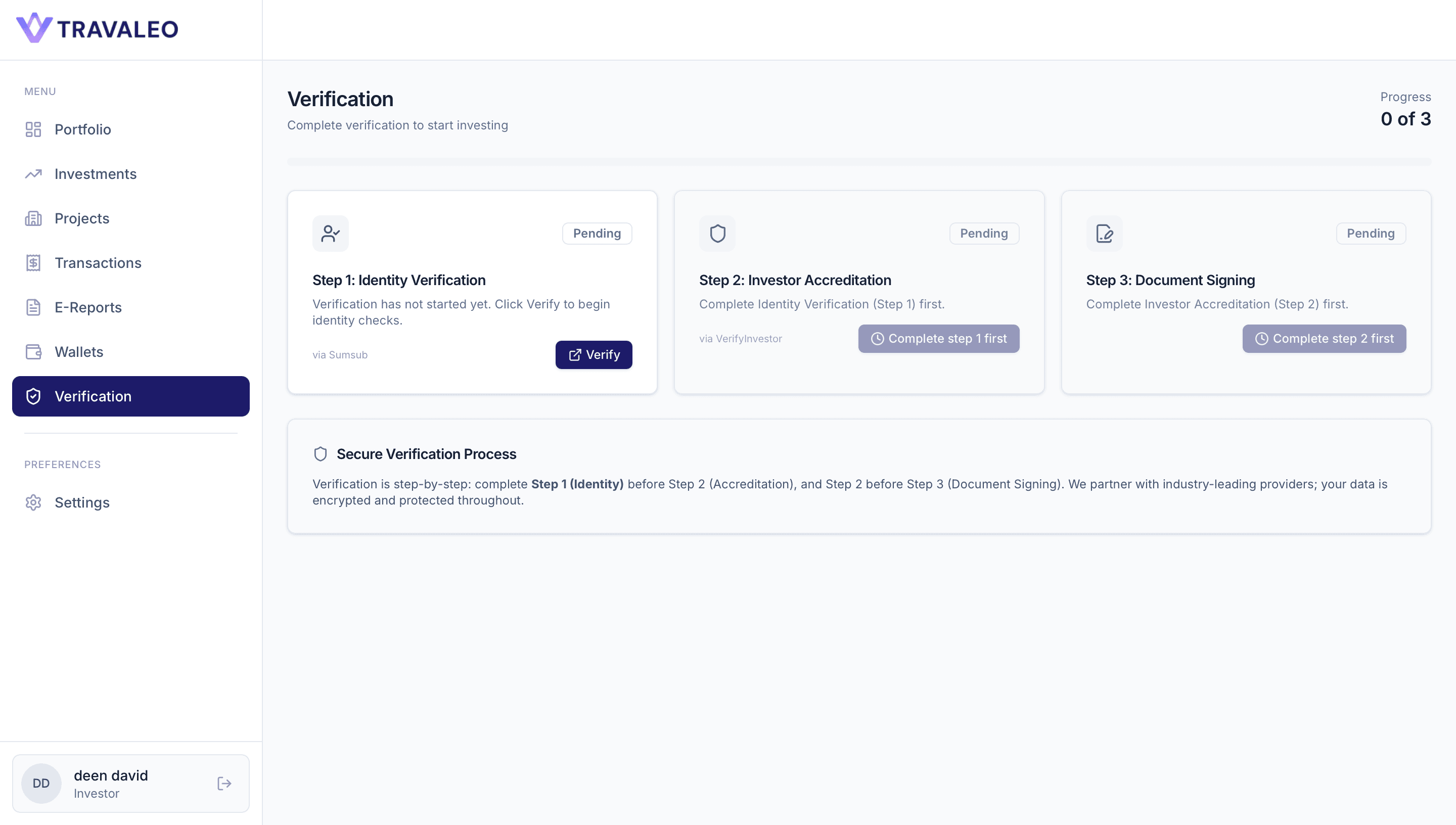
Before making an investment, the investor must complete all required verification steps from the Verification section.
The platform requires 3 mandatory verification steps:
Step 1: Identity Verification Click Verify to complete KYC (Know Your Customer). This confirms the investor's identity through the platform's verification provider.
Step 2: Investor Accreditation After KYC is completed, click Complete step 1 first or continue once the button becomes active. This step confirms the investor’s eligibility before they can invest.
Step 3: Document Signing After investor accreditation is completed, the investor must complete the required signature process. This confirms agreement with the required investment documents.
The investor cannot proceed directly to investment until all three steps are completed.
Current progress is shown on the top right, for example 0 of 3. Once all steps are completed and approved, the investor can continue with investment, share claiming, wallet token allocation, payouts, reports, and notifications.
Manage Account Settings
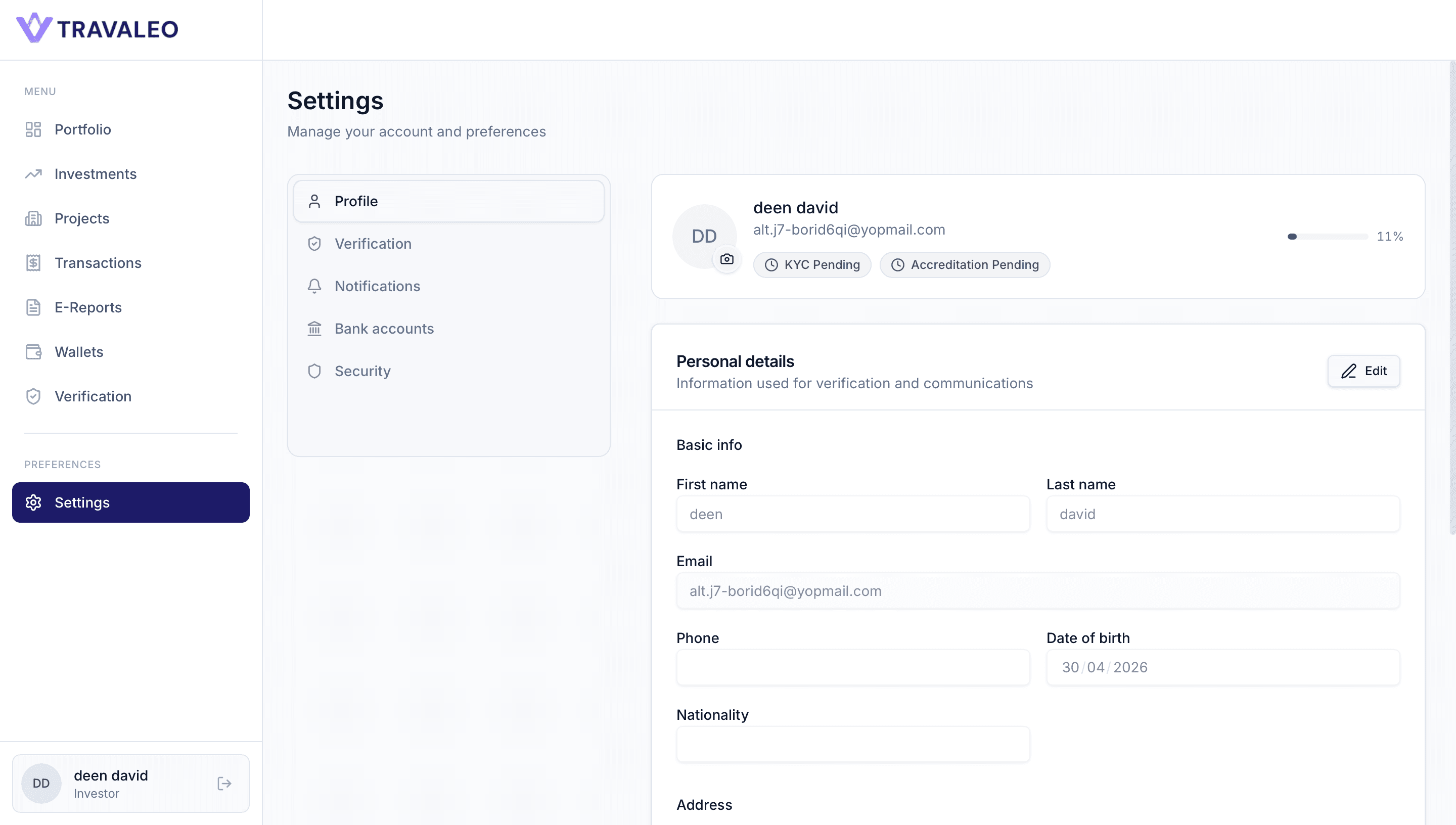
The investor can open the Settings section from the left side menu to manage account details, preferences, verification status, notifications, bank accounts, and security settings.
In the Profile section, the investor can:
- View profile details and account completion progress.
- Check verification status, such as KYC Pending Accreditation Pending.
- Review and update personal details, including First Name Last Name Email Phone Date of Birth Nationality.
- Add or update address details, including Street Address City State / Province ZIP / Postal Code Country.
- Add professional details, including Occupation Employer.
- Click Edit to update available profile information.
The investor should keep this information accurate because it may be used for verification, investment communication, compliance checks, and account security.
Review Verification Status from Settings
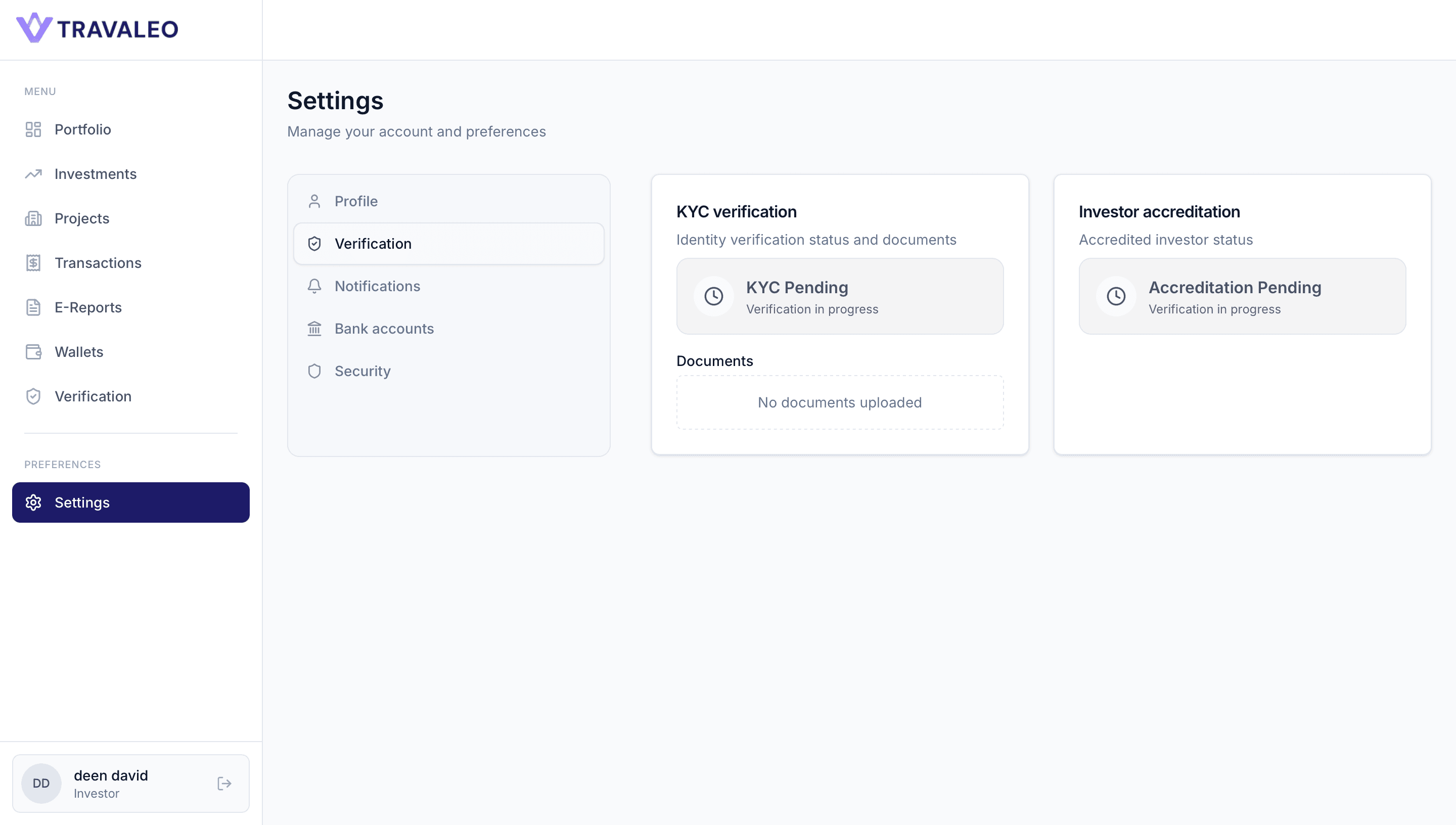
The investor can also check their verification status from Settings.
To review verification details:
- Open Settings from the left side menu.
- Select Verification from the settings menu.
- Review the current status for KYC Verification Investor Accreditation.
- Check whether any documents have been uploaded or are still required.
- If the status shows Pending, the investor should complete the required verification steps from the main Verification section.
This section helps investors confirm whether their identity verification and accreditation are still pending, in progress, or completed.
Investment access remains restricted until all required verification steps are successfully completed.
Manage Notification Preferences
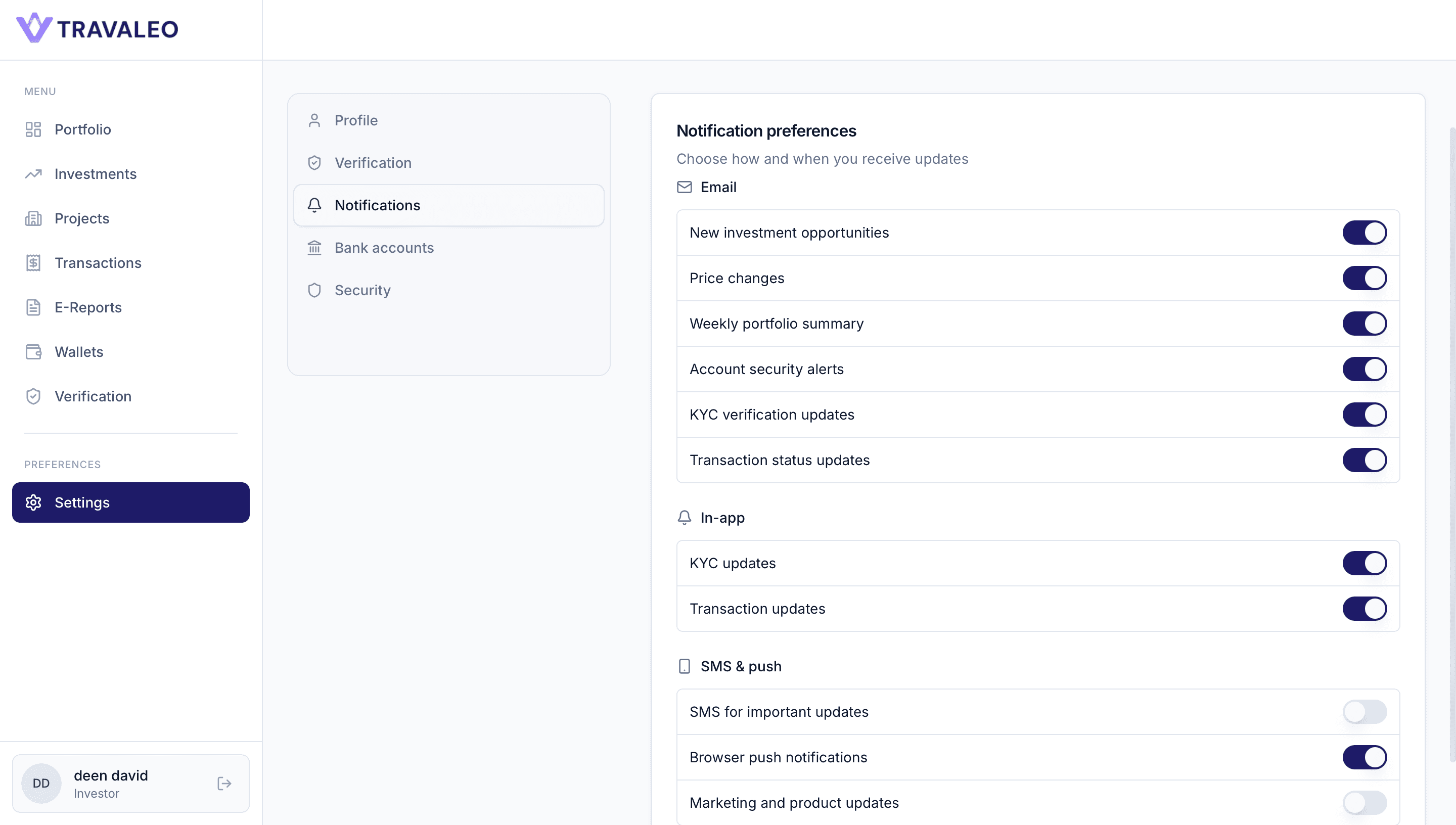
The investor can manage account and investment alerts from the Notifications tab inside Settings
To update notification preferences:
- Open Settings from the left side menu.
- Select Notifications.
- Choose which updates should be enabled or disabled.
- Turn the toggle on or off based on personal preference.
The investor can manage notifications for
Email Notifications New investment opportunities Price changes Weekly portfolio summary Account security alerts KYC verification updates Transaction status updates
In App notifications KYC updates Transaction updates
SMS and push notifications SMS for important updates Browser push notifications Marketing and product updates
These notifications help investors stay informed about verification progress, investment activity, payout updates, transaction changes, and new opportunities.
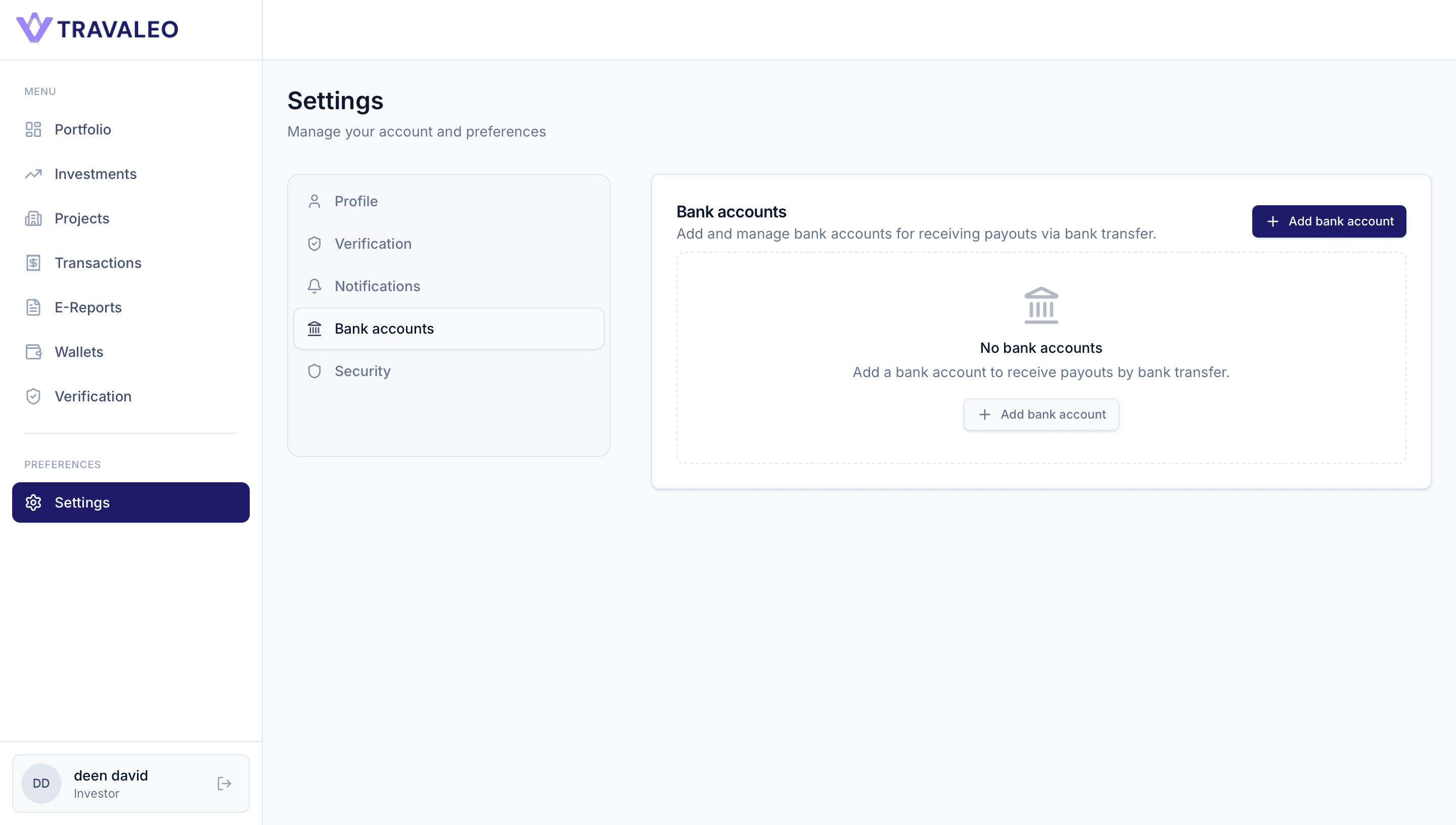
Add Bank Account
The investor can add a bank account from Settings to receive payouts through bank transfer.
To add a bank account:
- Open Settings from the left side menu.
- Select Bank Accounts.
- Click Add bank account.
- Enter the required bank details.
- Review the information carefully before saving.
- Submit the bank account details for use in future payout activity.
If no bank account is added, the page will show No bank accounts.
Adding a bank account is important because payouts may be transferred to the investor through bank transfer, based on the project payout rules and approved investment records.
Fill Bank Account Details
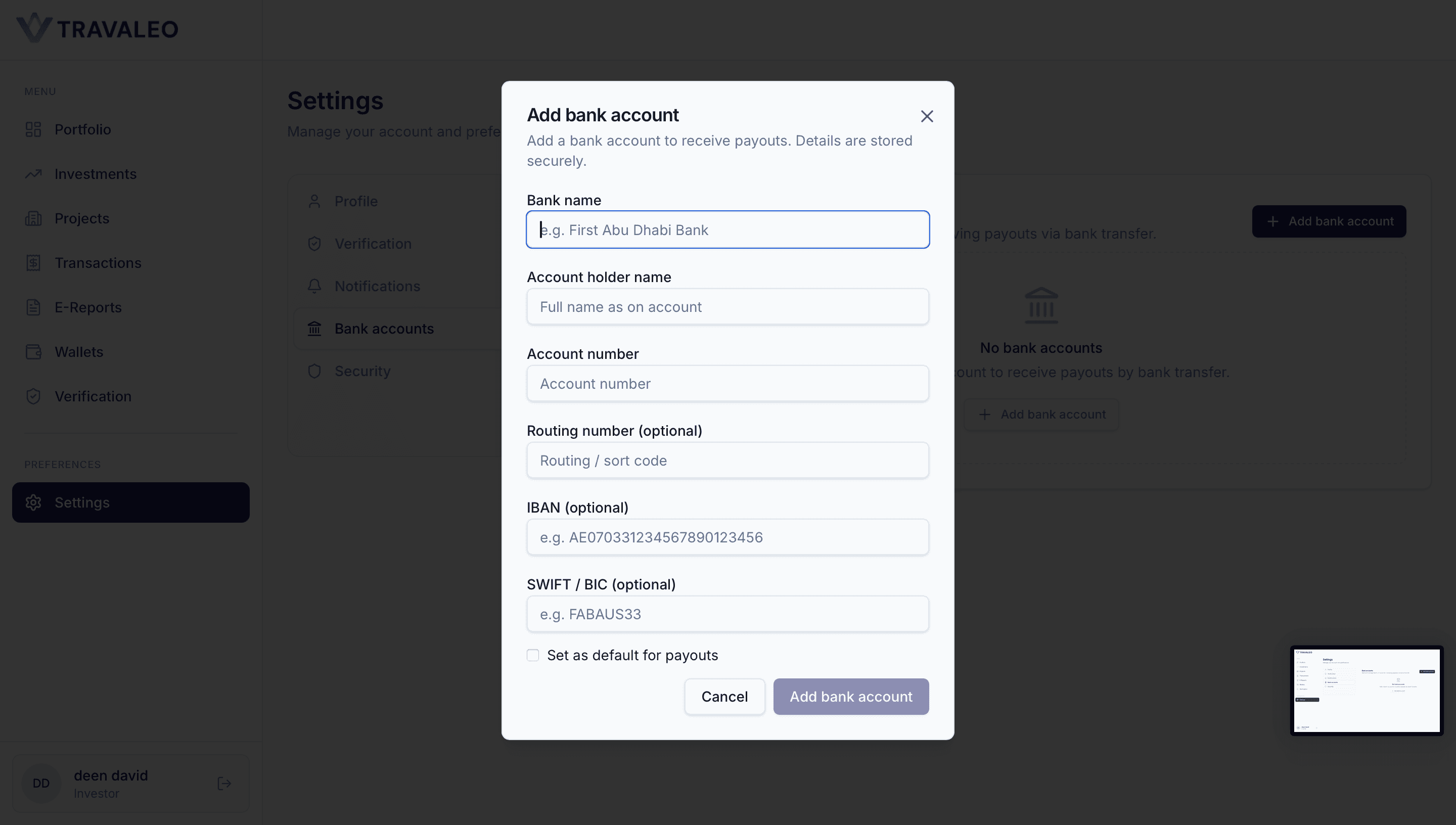
After clicking Add bank account, the investor will see a form to add bank details for receiving payouts.
The investor should fill in the required information:
- Enter the Bank Name.
- Enter the Account Holder Name exactly as it appears on the bank account.
- Enter the Account Number.
- Add the Routing Number if required.
- Add the IBAN if available.
- Add the SWIFT / BIC code if required for international transfers.
- Tick Set as default for payouts if this should be the main payout account.
- Click Add bank account to save the details.
If the investor does not want to continue, they can click Cancel or close the popup.
Bank details should be reviewed carefully before submission because payout transfers will depend on the saved account information.
Manage Security Settings
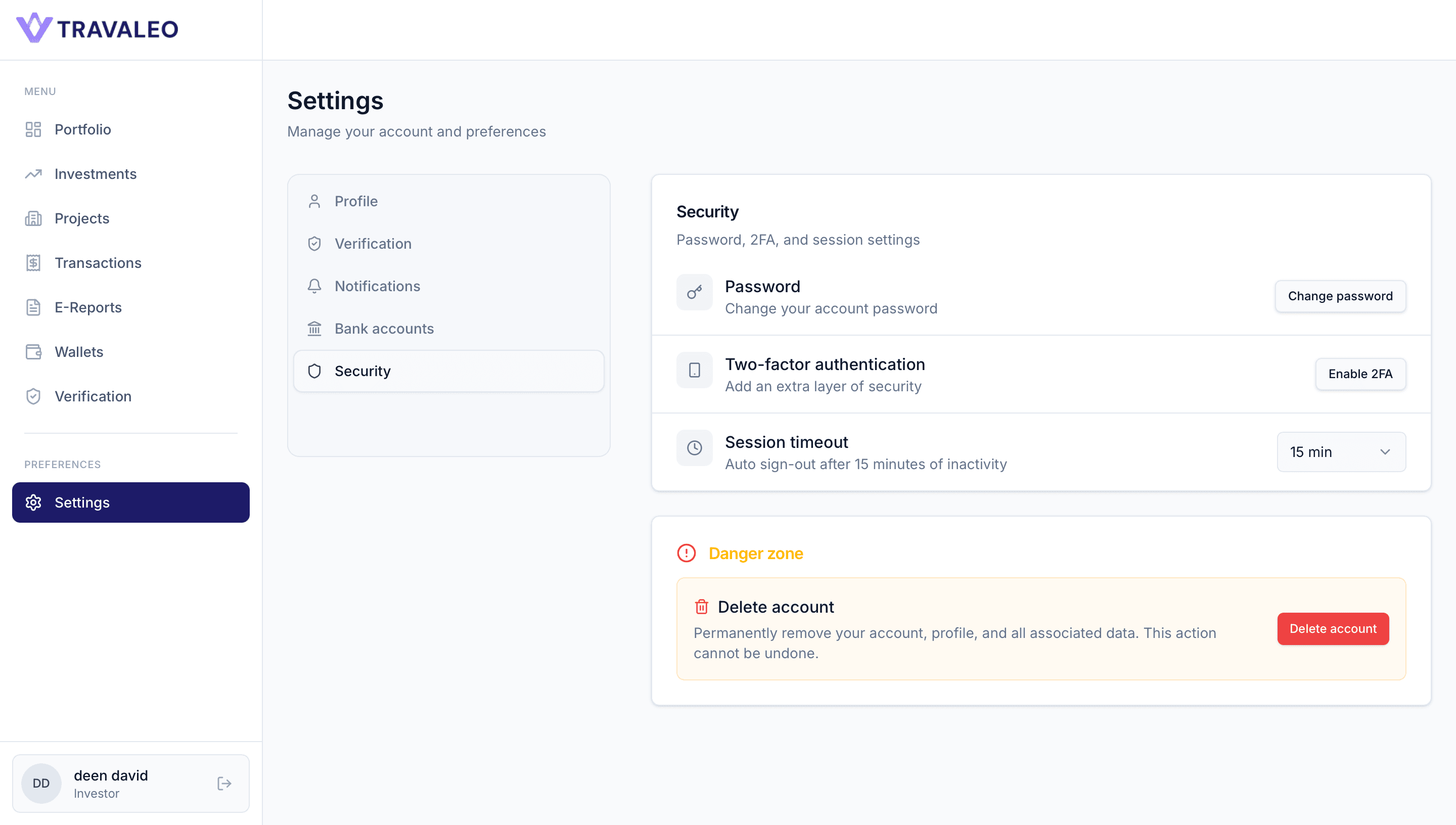
The investor can manage account security from the Security tab inside Settings.
To access security settings:
- Open Settings from the left side menu.
- Select Security.
- Review or update the available security options.
From this section, the investor can:
Change Password Click Change password to update the account password.
Enable Two Factor Authentication Click Enable 2FA to add an extra layer of security to the account.
Manage Session Timeout Select the preferred session timeout duration. The system will automatically sign out the investor after inactivity.
Delete Account Use Delete account only if the investor wants to permanently remove the account, profile, and associated data.
Deleting an account is permanent and cannot be undone, so the investor should only use this option after careful review.
Change Password
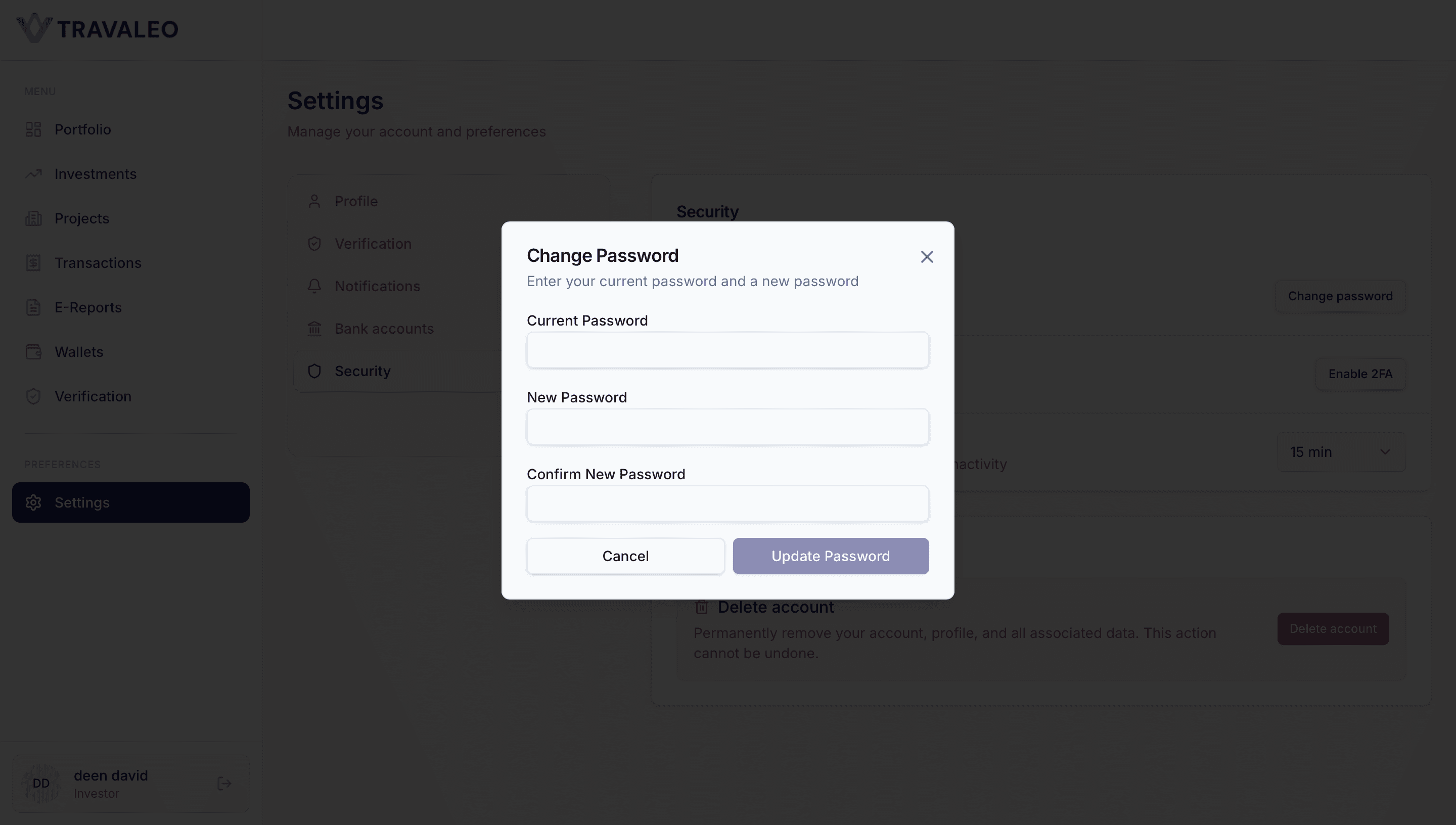
The investor can update their account password from the Security section.
To change the password:
- Open Settings from the left side menu.
- Select Security.
- Click Change password.
- Enter the Current Password.
- Enter the New Password.
- Confirm the new password by entering it again.
- Click Update Password.
If the investor does not want to continue, they can click Cancel or close the popup.
After the password is updated, the investor should use the new password for future sign ins.
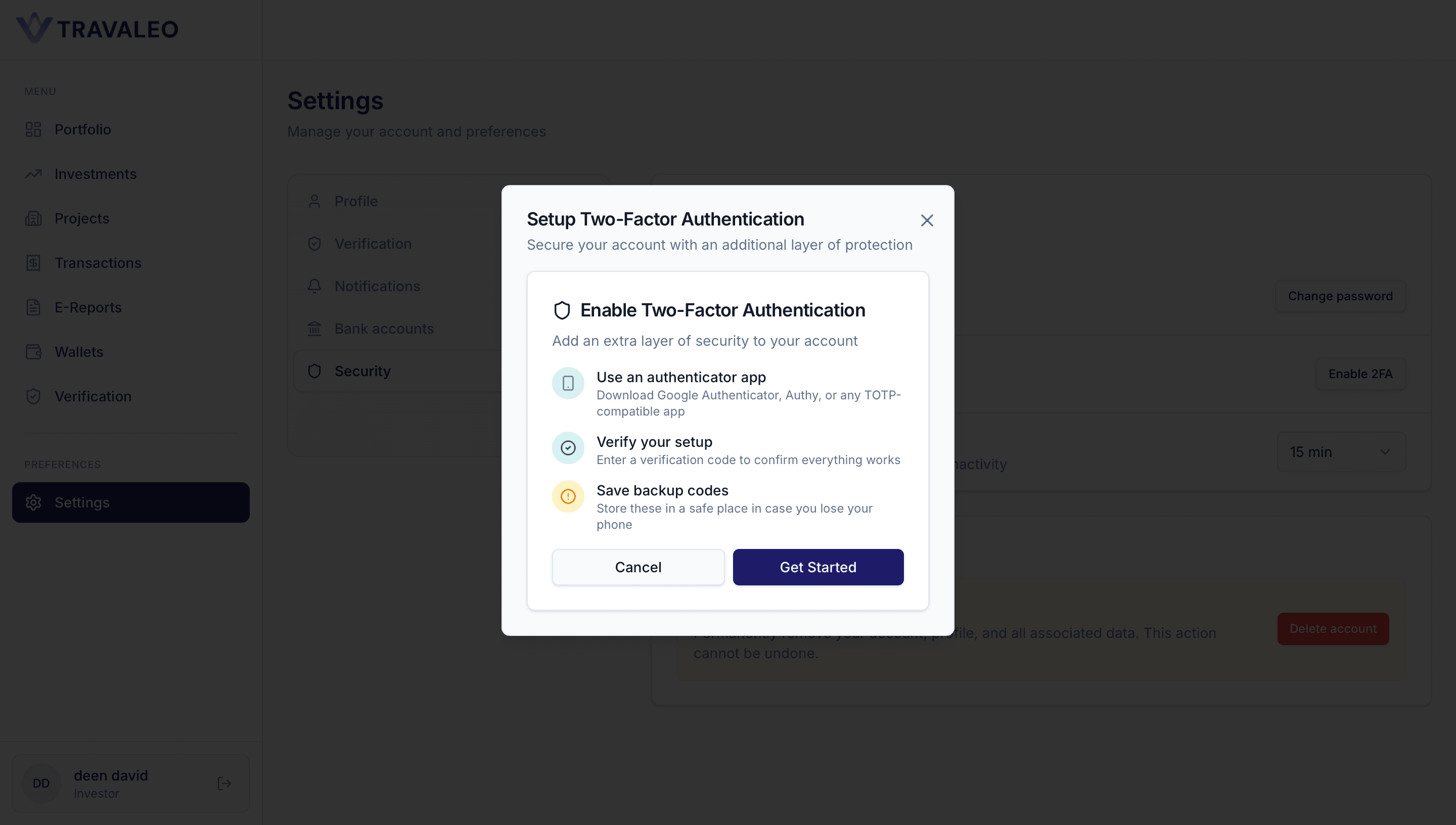
Set Up Two Factor Authentication
The investor can enable Two Factor Authentication from the Security section to add another layer of account protection.
To set up Two Factor Authentication:
- Open Settings from the left side menu.
- Select Security.
- Click Enable 2FA.
- Review the setup steps shown in the popup.
- Click Get Started.
Use an Authenticator App Download an app like Google Authenticator, Authy, or another supported TOTP app.
Verify the Setup Enter the verification code from the authenticator app to confirm that it is working.
Save Backup Codes Store the backup codes in a safe place. These codes can help recover account access if the investor loses the device.
If the investor does not want to continue, they can click Cancel or close the popup.
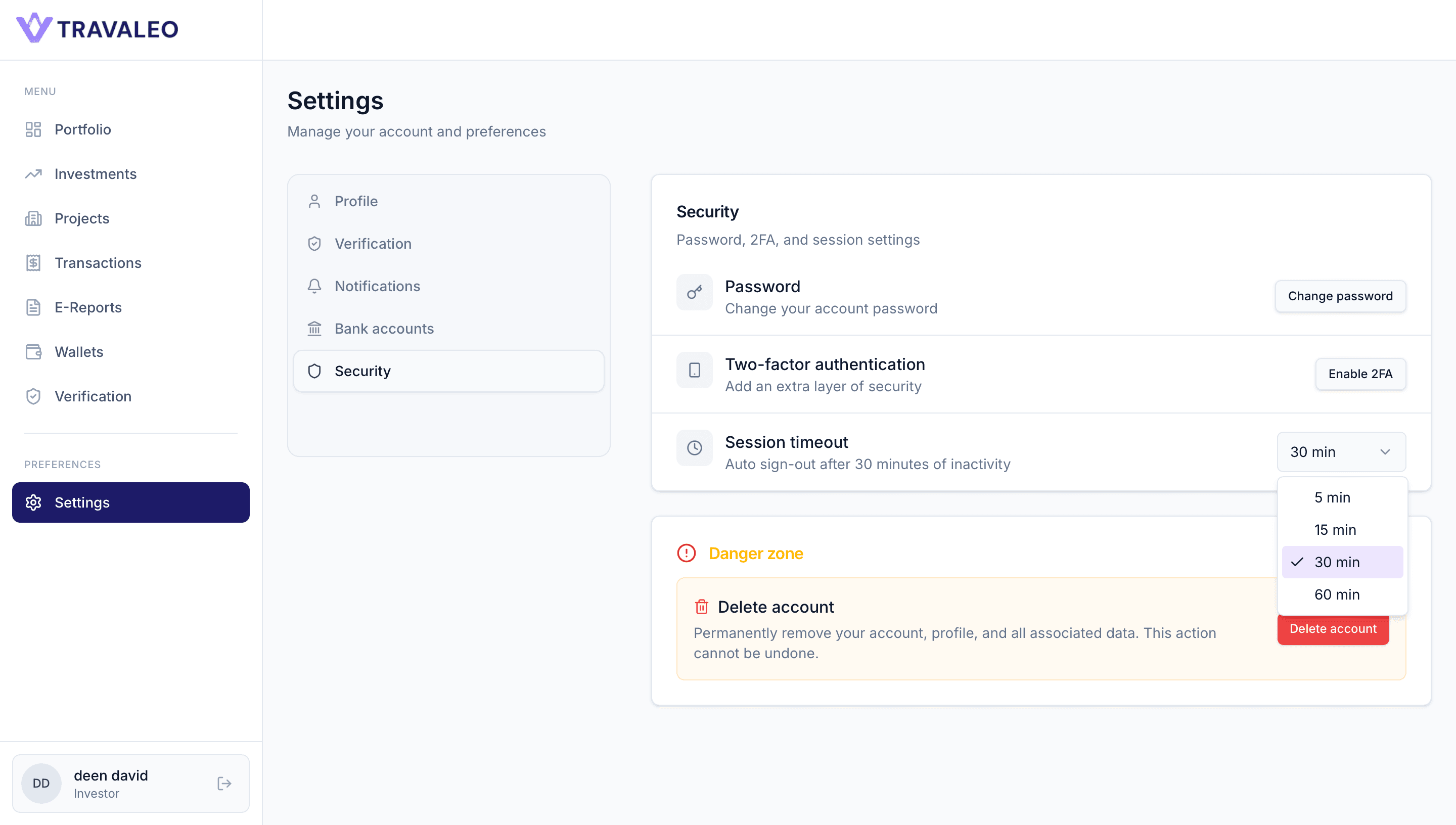
Set Session Timeout
The investor can choose how long the account stays active when there is no activity.
To update session timeout:
- Open Settings from the left side menu.
- Select Security.
- Find Session timeout.
- Open the dropdown menu.
- Choose the preferred timeout option: 5 min 15 min 30 min 60 min.
- The system will automatically apply the selected session duration.
Once set, the platform will automatically sign out the investor after the selected period of inactivity.
This helps protect the account, especially when the investor uses the platform on a shared or public device.
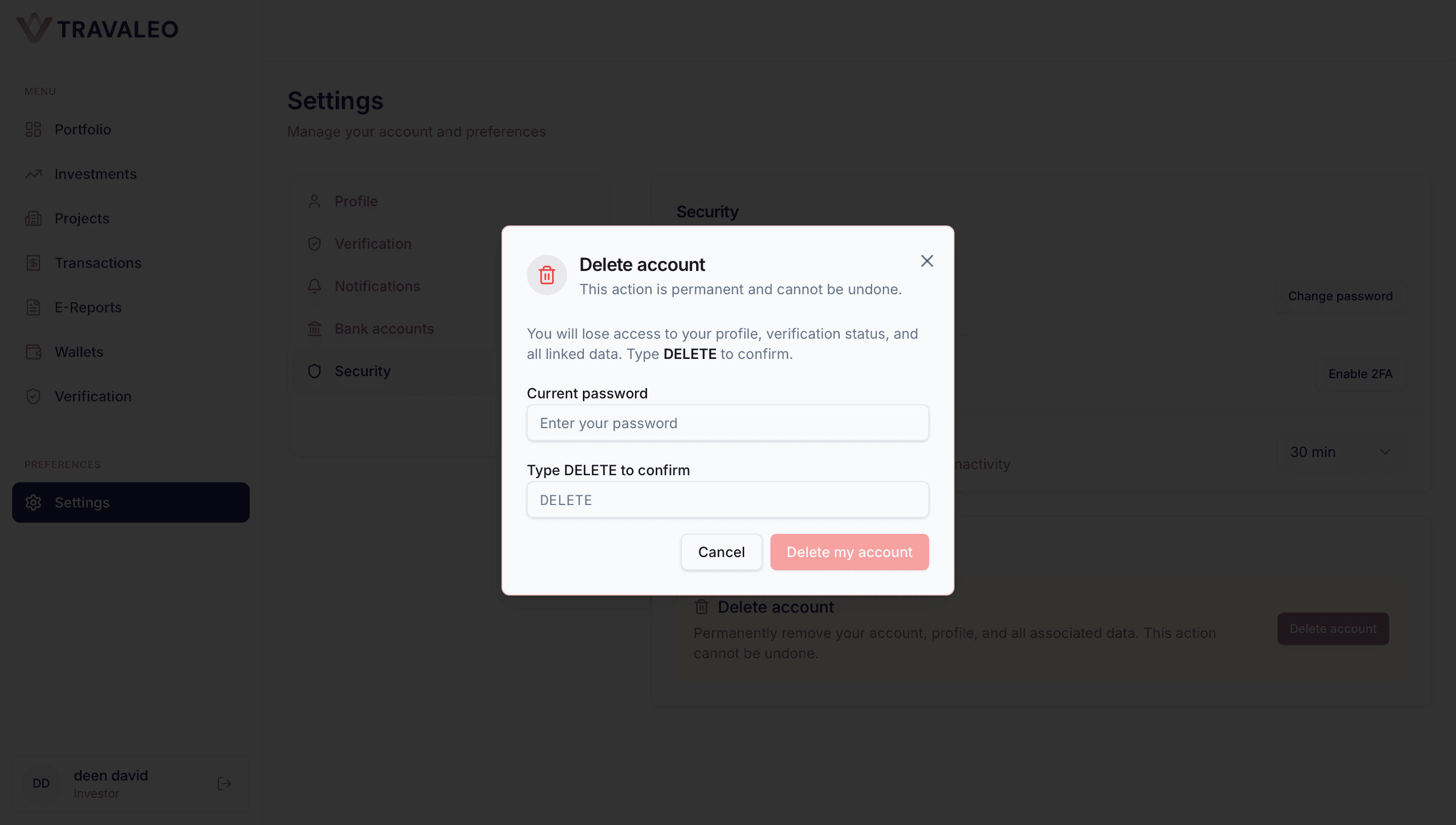
Delete Account
The investor can delete their account from the Security section.
To delete the account:
- Open Settings from the left side menu.
- Select Security.
- Click Delete account from the Danger Zone.
- Enter the current password.
- Type DELETE to confirm.
- Click Delete my account.
This action is permanent. Once deleted, the investor will lose access to the profile, verification status, linked data, and related account information.
If the investor does not want to continue, they can click Cancel or close the popup.
Log Out
The investor can log out from the platform whenever they want to end the current session.
To log out:
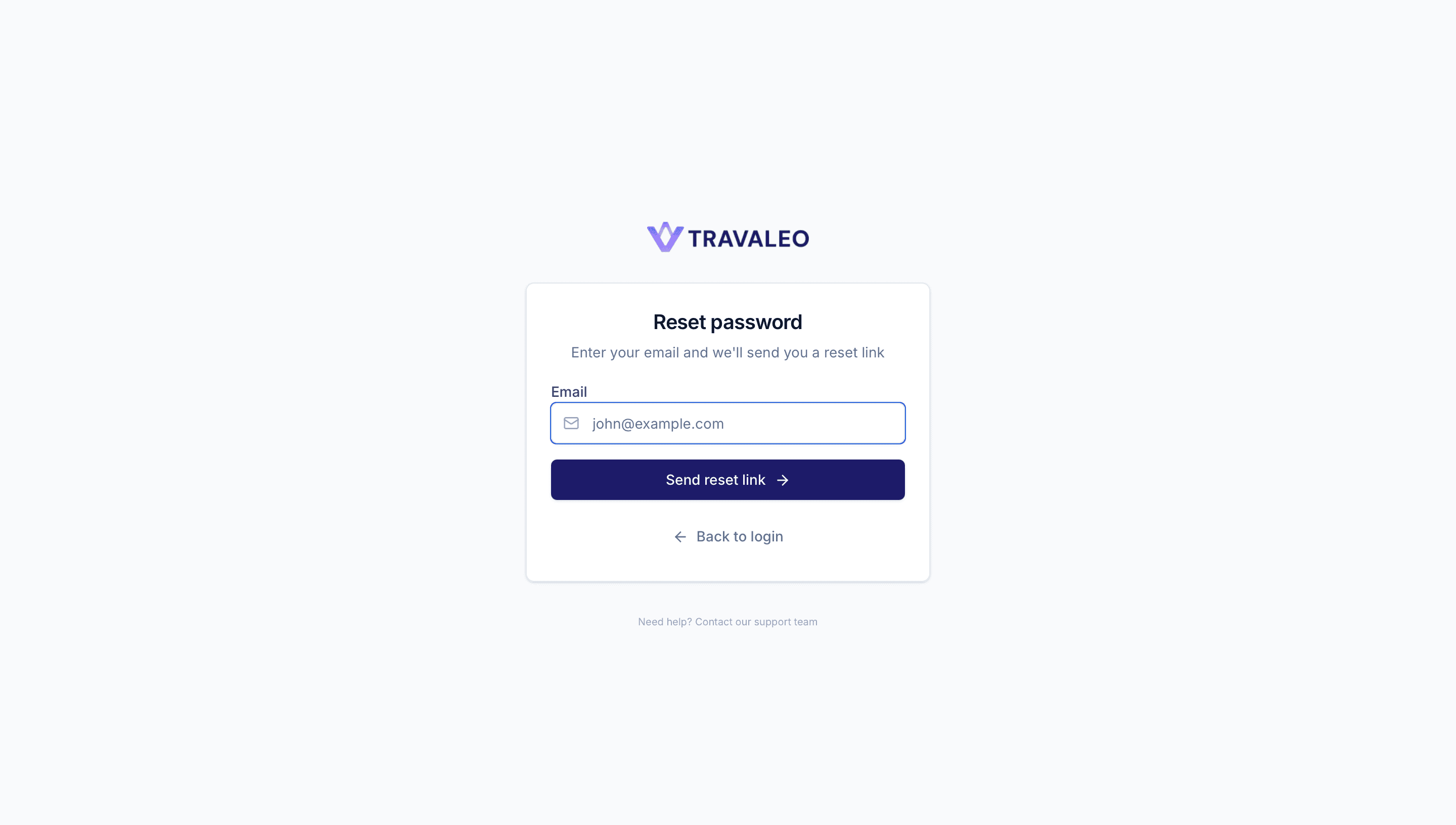
- Click the logout icon from the sidebar profile area.
- A confirmation popup will appear.
- Click Log out to confirm.
- The investor will be signed out and redirected away from the dashboard.
If the investor wants to stay logged in, they can click Cancel or close the popup.
Logging out is recommended after completing account activity, especially when using a shared or public device.